



这个绘图工具,我还没有做完,不过已经实现了总架构,以及常见的简易图形绘制功能:
1,可以绘制直线,圆,矩形,正多边形【已完成】
2,填充颜色和描边颜色的选择【已完成】
3,描边和填充功能的选择【已完成】
后续版本:
立即学习“前端免费学习笔记(深入)”;
橡皮擦,坐标系,线形设置,箭头,其他流程图形,裁剪与调整图形。。。。。
终极目标:
流程绘制软件
我是之前看见一位朋友在我的博客中留言说:
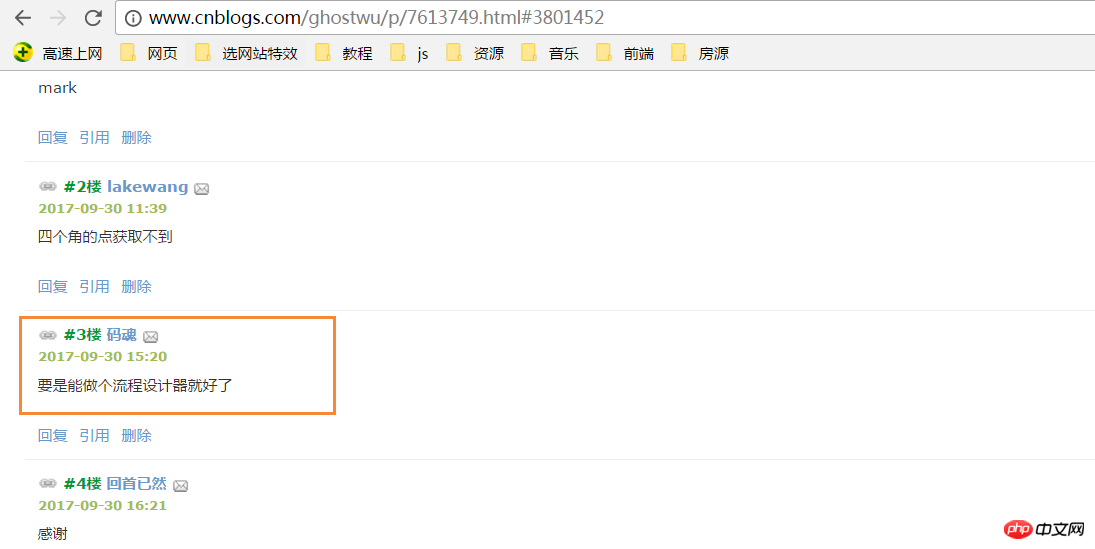
非常感谢这个朋友,今天终于抽出时间完成非常非常小的雏形!
完整的雏形代码,请自行打开,复制到本地测试.


windows简易画图工具 - by ghostwu
- 形状
- 颜色
- 绘制类型
- 线条宽度
- 橡皮擦
关于流程设计,后期要做的功能,思路基本上已经有了,好了,圆规正传,想要完成这个终极目标,完成一个画图工具应该就能接近目标了。先体验下目前的简易功能,下面是可以正常画图的,【需要你的浏览器支持canvas才可以额】
主要来讲下目标的雏形架构:
1,图形绘制部分,我封装了一个类Shape
function Shape(canvasObj, cxtObj, w, h) {
        this.oCanvas = canvasObj;
        this.oGc = cxtObj;
        this.oCanvas.width = w;
        this.oCanvas.height = h;
        this.fillStyle = '#000';
        this.storkeStyle = '#000';
        this.lineWidth = 1;
        this.drawType = 'line';
        this.paintType = 'stroke';
        this.nums = 6; //正多边形的边数
    }
canvasObj: 就是canvas画布对象
cxtObj: 就是上下文绘图环境

AutoIt v3 版本, 这是一个使用类似 BASIC 脚本语言的免费软件, 它设计用于 Windows GUI(图形用户界面)中进行自动化操作. 利用模拟键盘按键, 鼠标移动和窗口/控件的组合来实现自动化任务. 而这是其它语言不可能做到或无可靠方法实现的(比如VBScript和SendKeys). AutoIt 非常小巧, 完全运行在所有windows操作系统上.(thesnow注:现在已经不再支持win 9x,微软连XP都能放弃, 何况一个win 9x支持), 并且不需要任何运行库. AutoIt
w: canvas的宽度
h: canvas的高度
fillStyle: 填充颜色
strokeStyle: 描边颜色
lineWidth: 线宽
drawType: 默认为画直线
paintType: stroke/fill 两种选择( 描边/填充)
2,在原型对象上扩展一个公共方法draw用来绘制图形
draw方法,主要获取起始点坐标(startX, startY),以及终点坐标( endX, endY );
然后调用init方法来获取绘制状态,绘制具体的图形靠下面这个关键方法:
_this[_this.drawType](startX, startY, endX, endY)
这个方法的drawType会根据界面的实时选择,变换对应的绘制类型,如:
_this['line']( startX, startY, endX, endY )
调用的就是oShape对象中的line,画直线的方法
Shape.prototype = {
        init: function () {
            this.oGc.fillStyle = this.fillStyle;
            this.oGc.strokeStyle = this.strokeStyle;
            this.oGc.lineWidth = this.lineWidth;
        },
        draw: function () {
            var _this = this;
            this.oCanvas.onmousedown = function ( ev ) {
                _this.init();
                var oEvent = ev || event,
                    startX = oEvent.clientX - _this.oCanvas.offsetLeft,
                    startY = oEvent.clientY - _this.oCanvas.offsetTop;
                _this.oCanvas.onmousemove = function ( ev ) {
                    _this.oGc.clearRect( 0, 0, _this.oCanvas.width, _this.oCanvas.height );
                    var oEvent = ev || event,
                        endX = oEvent.clientX - _this.oCanvas.offsetLeft,
                        endY = oEvent.clientY - _this.oCanvas.offsetTop;
                    _this[_this.drawType](startX, startY, endX, endY);
                };
                _this.oCanvas.onmouseup = function(){
                    _this.oCanvas.onmousemove = null;
                    _this.oCanvas.onmouseup = null;
                }
            }
        },
        line: function ( x1, y1, x2, y2 ) {
            this.oGc.beginPath();
            this.oGc.moveTo( x1, y1 );
            this.oGc.lineTo( x2, y2 );
            this.oGc.closePath();
            this.oGc.stroke();
        },
        circle : function( x1, y1, x2, y2 ){
            this.oGc.beginPath();
            var r = Math.sqrt( Math.pow( x2 - x1, 2 ) + Math.pow( y2 - y1, 2 ) );
            this.oGc.arc( x1, y1, r, 0, 2 * Math.PI, false );
            this.oGc.closePath();
            this.oGc[this.paintType]();
        },
        rect : function( x1, y1, x2, y2 ){
            this.oGc.beginPath();
            this.oGc.rect( x1, y1, x2 - x1, y2 - y1 );
            this.oGc[this.paintType]();
        },
        polygon : function( x1, y1, x2, y2 ){
            var angle = 360 / this.nums * Math.PI / 180;//边对应的角的弧度
            var r = Math.sqrt( Math.pow( x2 - x1, 2 ) + Math.pow( y2 - y1, 2 ) );
            this.oGc.beginPath();
            for( var i = 0; i < this.nums; i ++ ){
                this.oGc.lineTo( x1 + r * Math.cos( angle * i ), y1 + r * Math.sin( angle * i ) );
            }
            this.oGc.closePath();
            this.oGc[this.paintType]();
        }
}3,界面操作很简单,基本是选项卡的操作+html5的自定义属性+classList的应用




