
本文主要和大家分享微信小程序开发弹出框实现方法,本文所分享的代码很清晰,希望能帮助到大家。
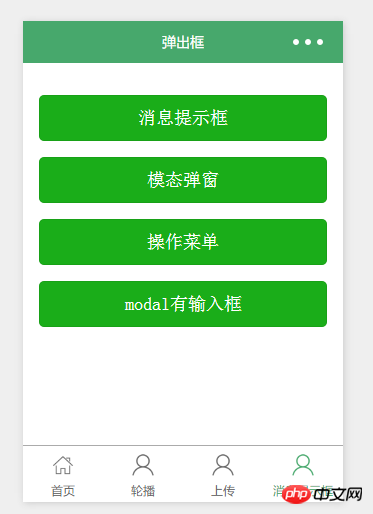
<view class="container" class="zn-uploadimg">
	<button type="primary"bindtap="showok">消息提示框</button>
	<button type="primary"bindtap="modalcnt">模态弹窗</button>
	<button type="primary"bindtap="actioncnt">操作菜单</button>
</view>
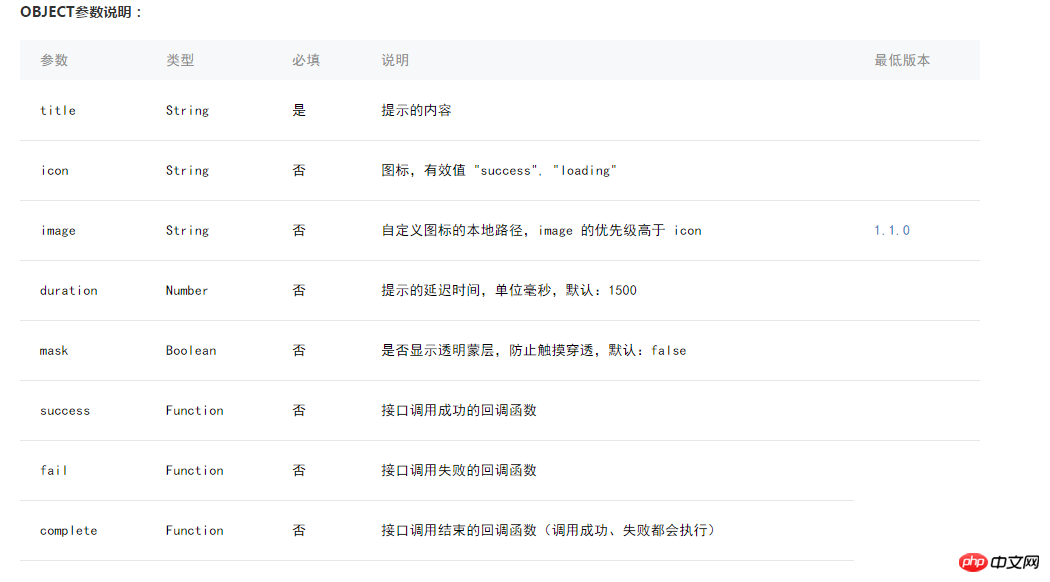
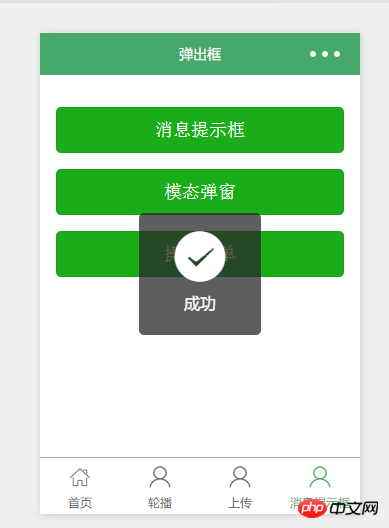
1.消息提示——wx.showToast(OBJECT)
//show.js
//获取应用实例
var app = getApp()
Page({
	showok:function() {
		wx.showToast({
		  	title: '成功',
		  	icon: 'success',
		  	duration: 2000
		})
	}
})
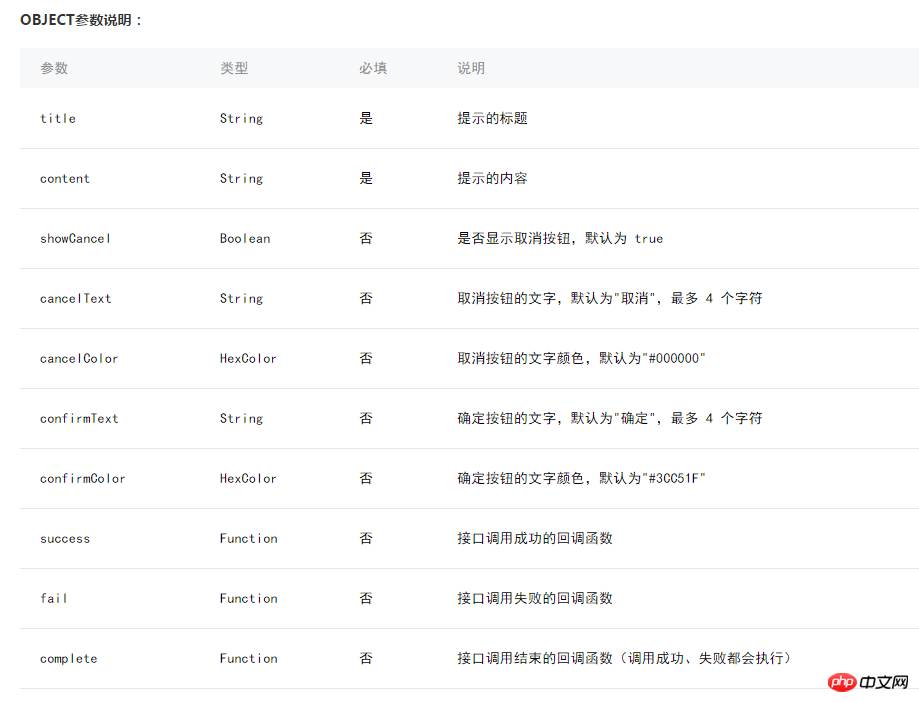
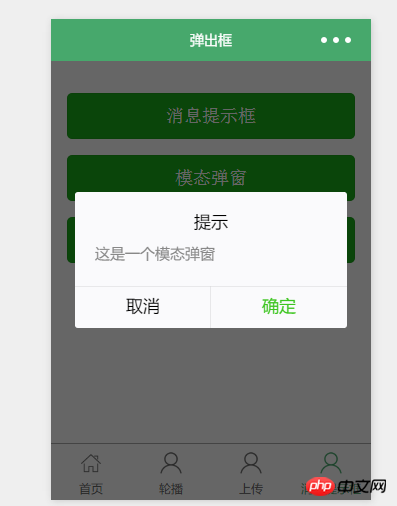
2.模态弹窗——wx.showModal(OBJECT)
//show.js
//获取应用实例
var app = getApp()
Page({
	modalcnt:function(){
		wx.showModal({
			title: '提示',
			content: '这是一个模态弹窗',
			success: function(res) {
				if (res.confirm) {
				console.log('用户点击确定')
				} else if (res.cancel) {
				console.log('用户点击取消')
				}
			}
		})
	}
})
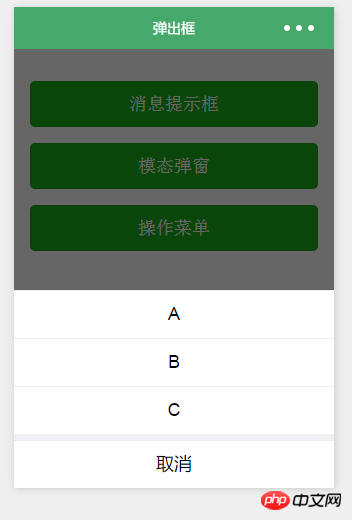
3.操作菜单——wx.showActionSheet(OBJECT)
<br/>

极限网络办公Office Automation
下载
专为中小型企业定制的网络办公软件,富有竞争力的十大特性: 1、独创 web服务器、数据库和应用程序全部自动傻瓜安装,建立企业信息中枢 只需3分钟。 2、客户机无需安装专用软件,使用浏览器即可实现全球办公。 3、集成Internet邮件管理组件,提供web方式的远程邮件服务。 4、集成语音会议组件,节省长途话费开支。 5、集成手机短信组件,重要信息可直接发送到员工手机。 6、集成网络硬
//show.js
//获取应用实例
var app = getApp()
Page({
	actioncnt:function(){
		wx.showActionSheet({
			itemList: ['A', 'B', 'C'],
			success: function(res) {
				console.log(res.tapIndex)
			},
			fail: function(res) {
				console.log(res.errMsg)
			}
		})
	}
})
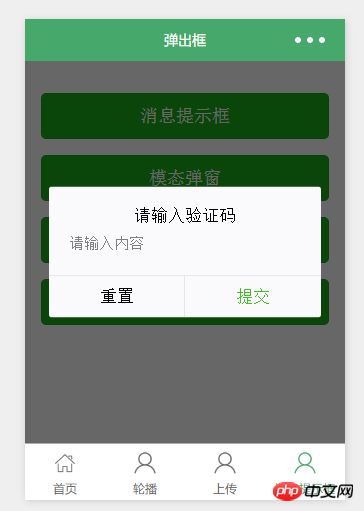
4.指定modal弹出
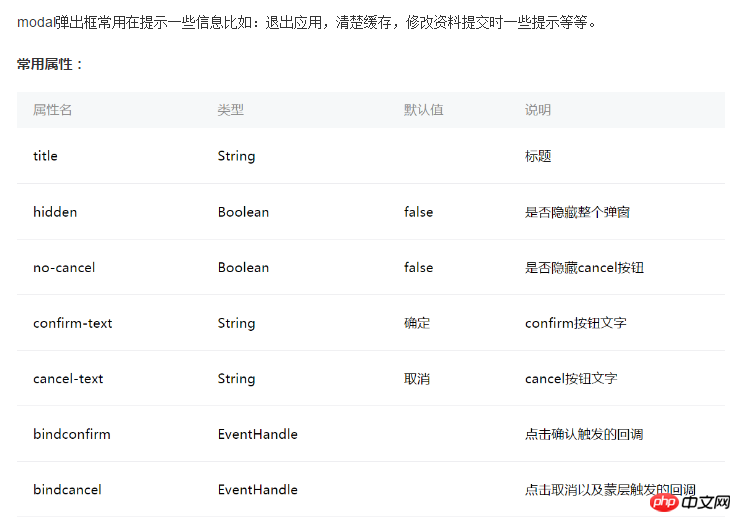
指定哪个modal,可以通过hidden属性来进行选择。
<!--show.wxml-->
<view class="container" class="zn-uploadimg">
	<button type="primary"bindtap="modalinput">modal有输入框</button>
</view>
<modal hidden="{{hiddenmodalput}}" title="请输入验证码" confirm-text="提交" cancel-text="重置" bindcancel="cancel" bindconfirm="confirm">
    <input type='text'placeholder="请输入内容" auto-focus/>
</modal>
//show.js
//获取应用实例
var app = getApp()
Page({
data:{
hiddenmodalput:true,
//可以通过hidden是否掩藏弹出框的属性,来指定那个弹出框
},
//点击按钮痰喘指定的hiddenmodalput弹出框
modalinput:function(){
this.setData({
hiddenmodalput: !this.data.hiddenmodalput
})
},
//取消按钮
cancel: function(){
this.setData({
hiddenmodalput: true
});
},
//确认
confirm: function(){
this.setData({
hiddenmodalput: true
})
}
})
相关推荐: