



Selenium是一个用于Web应用程序测试的工具。Selenium测试直接运行在浏览器中,就像真正的用户在操作一样。上回《web 自动化测试(二)》主要讲述的是web测试中Selenium 3使用的问题集以及解决方案。本文主要讲述的是启动IE, Firefox,Chrome代码示例 ,仅供参考。
要使用启动ie, firefox, chrome之前,必须把对应浏览器的driver sever设置到windows 系统path目录下。
比如我的driver都放到这个目录下C:\Program Files (x86)\seleniumdriver, 下面是windows 系统 path路径的设置。
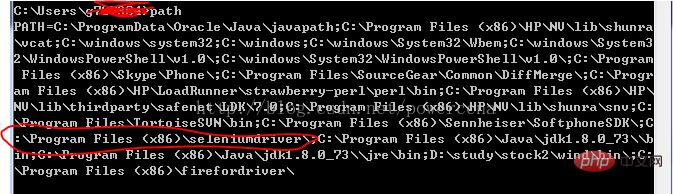
启动IE 代码:
#!/usr/bin/env python
#coding=utf-8

from selenium import webdriver
import os
from selenium.common.exceptions import TimeoutException
from selenium.webdriver.support.ui import WebDriverWait # available since 2.4.0
from selenium.webdriver.support import expected_conditions as EC # available since 2.26.0
from selenium.webdriver.firefox.firefox_binary import FirefoxBinary

driver = webdriver.Ie()

# go to the google home page
driver.get("https://www.baidu.com/")

# the page is ajaxy so the title is originally this:
print driver.title

# find the element that's name attribute is q (the google search box)
inputElement = driver.find_element_by_name("wd")

# type in the search
inputElement.send_keys("cheese!")

# submit the form (although google automatically searches now without submitting)
inputElement.submit()

try:
    # we have to wait for the page to refresh, the last thing that seems to be updated is the title
    WebDriverWait(driver, 10).until(EC.title_contains("cheese!"))

    # You should see "cheese! - Google Search"
    print driver.title

finally:
    pass
    #driver.quit()
启动FireFox 代码:

#!/usr/bin/env python
#coding=utf-8

from selenium import webdriver
from selenium.common.exceptions import TimeoutException
from selenium.webdriver.support.ui import WebDriverWait # available since 2.4.0
from selenium.webdriver.support import expected_conditions as EC # available since 2.26.0
from selenium.webdriver.firefox.firefox_binary import FirefoxBinary

# Create a new instance of the Firefox driver
#binary = FirefoxBinary(r'C:\Program Files (x86)\Mozilla Firefox\firefox.exe')
#driver = webdriver.Firefox(firefox_binary=binary)

driver = webdriver.Firefox()

# go to the google home page
driver.get("https://www.baidu.com/")

# the page is ajaxy so the title is originally this:
print driver.title

# find the element that's name attribute is q (the google search box)
inputElement = driver.find_element_by_name("wd")

# type in the search
inputElement.send_keys("cheese!")

# submit the form (although google automatically searches now without submitting)
inputElement.submit()

try:
    # we have to wait for the page to refresh, the last thing that seems to be updated is the title
    WebDriverWait(driver, 10).until(EC.title_contains("cheese!"))

    # You should see "cheese! - Google Search"
    print driver.title

finally:
    pass
    #driver.quit()
启动Chrome代码:
#!/usr/bin/env python
#coding=utf-8

from selenium import webdriver
import os
from selenium.common.exceptions import TimeoutException
from selenium.webdriver.support.ui import WebDriverWait # available since 2.4.0
from selenium.webdriver.support import expected_conditions as EC # available since 2.26.0
from selenium.webdriver.firefox.firefox_binary import FirefoxBinary

driver = webdriver.Chrome()

# go to the google home page
driver.get("https://www.baidu.com/")

# the page is ajaxy so the title is originally this:
print driver.title

# find the element that's name attribute is q (the google search box)
inputElement = driver.find_element_by_name("wd")

# type in the search
inputElement.send_keys("cheese!!")

# submit the form (although google automatically searches now without submitting)
inputElement.submit()

try:
    # we have to wait for the page to refresh, the last thing that seems to be updated is the title
    WebDriverWait(driver, 10).until(EC.title_contains("cheese!"))

    # You should see "cheese! - Google Search"
    print driver.title

finally:
    pass
#driver.quit()【推荐课程:Python视频教程】




