



bootstrap提供了一组工具类,用于辅助项目的开发。本篇文章给大家详细介绍一下bootstrap中的辅助类。有一定的参考价值,有需要的朋友可以参考一下,希望对大家有所帮助。

相关推荐:《bootstrap教程》
文本色
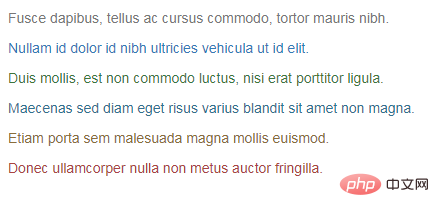
通过颜色来展示意图,Bootstrap 提供了一组工具类。这些类可以应用于链接,并且在鼠标经过时颜色可以还可以加深,就像默认的链接一样
.text-muted:提示,使用浅灰色(#777)
.text-primary:主要,使用蓝色(#337ab7)
.text-success:成功,使用浅绿色(#3c763d)
.text-info:通知信息,使用浅蓝色(#31708f)
.text-warning:警告,使用黄色(#8a6d3b)
.text-danger:危险,使用褐色(#a94442)
    Fusce dapibus, tellus ac cursus commodo, tortor mauris nibh.
    Nullam id dolor id nibh ultricies vehicula ut id elit.
    Duis mollis, est non commodo luctus, nisi erat porttitor ligula.
    Maecenas sed diam eget risus varius blandit sit amet non magna.
    Etiam porta sem malesuada magna mollis euismod.
    Donec ullamcorper nulla non metus auctor fringilla.
背景色
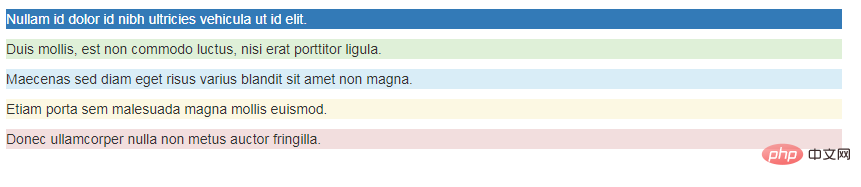
和情境文本颜色类一样,使用任意情境背景色类就可以设置元素的背景。链接组件在鼠标经过时颜色会加深,就像上面所讲的情境文本颜色类一样
.bg-primary:主要,使用蓝色(#337ab7)
.bg-success:成功,使用浅绿色(#dff0d8)
.bg-info:通知信息,使用浅蓝色(#d9edf7)
.bg-warning:警告,使用浅黄色(#fcf8e3)
.bg-danger:危险,使用浅紫色(#f2dede)
    Nullam id dolor id nibh ultricies vehicula ut id elit.
    Duis mollis, est non commodo luctus, nisi erat porttitor ligula.
    Maecenas sed diam eget risus varius blandit sit amet non magna.
    Etiam porta sem malesuada magna mollis euismod.
    Donec ullamcorper nulla non metus auctor fringilla.
文本对齐
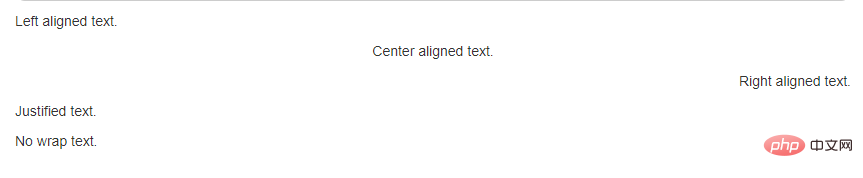
通过文本对齐类,可以简单方便的将文字重新对齐
.text-left {
    text-align: left;
}
.text-center {
    text-align: center;
}
.text-right {
    text-align: right;
}
.text-justify {
    text-align: justify;
}
.text-nowrap {
    white-space: nowrap;
}
Left aligned text.
Center aligned text.
Right aligned text.
Justified text.
No wrap text.
【居中】
为任意元素设置 display: block 属性并通过 margin 属性让其中的内容居中
center

大小写
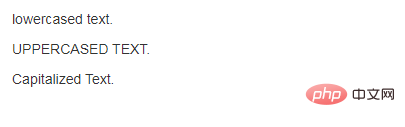
通过这几个类可以改变文本的大小写
.text-lowercase {
    text-transform: lowercase;
}
.text-uppercase {
    text-transform: uppercase;
}
.text-capitalize {
    text-transform: capitalize;
}
Lowercased text.
Uppercased text.
Capitalized text.
按钮和符号
【关闭按钮】
通过使用一个象征关闭的图标,可以让模态框和警告框消失

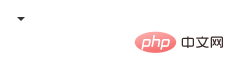
【三角符号】
通过使用三角符号可以指示某个元素具有下拉菜单的功能

商品查询功能提供了一个快速查看商品的途径。商品查询分为基本查询和高级查询。基本查询:提供关键字和商品大类两种条件的查询,用户可以只填写关键字或者选择商品大类或者关键字和商品大类都填写来查询商品。高级查询:提供关键字,商品大类,商品小类,商品价格范围四种条件的查询,用户可以任意填写其中一种或几种的查询条件来查询想要了解的商品信息。商品查询功能大大的方便了用户,提高了网站的用户体验。(5)帮助系统模块
.caret {
    display: inline-block;
    width: 0;
    height: 0;
    margin-left: 2px;
    vertical-align: middle;
    border-top: 4px dashed;
    border-top: 4px solid \9;
    border-right: 4px solid transparent;
    border-left: 4px solid transparent;
}
浮动
通过添加一个类,可以将任意元素向左或向右浮动。!important 被用来明确 CSS 样式的优先级
[注意]排列导航条中的组件时可以使用.navbar-left 或 .navbar-right
【清除浮动】
通过为父元素添加 .clearfix 类可以很容易地清除浮动(float)
.pull-left {
  float: left !important;
}
.pull-right {
  float: right !important;
}
.clearfix() {
&:before,
&:after {
content: " ";
display: table;
}
&:after {
clear: both;
}
}leftrightaaa

隐藏
【显示隐藏内容】
.show 和 .hidden 类可以强制任意元素显示或隐藏(对于屏幕阅读器也能起效)。这些类通过 !important 来避免 CSS 样式优先级问题
另外,.invisible 类可以被用来仅仅影响元素的可见性,也就是说,元素的 display 属性不被改变,并且这个元素仍然能够影响文档流的排布
[注意]这些类只对块级元素起作用
.show {
  display: block !important;
}
.hidden {
  display: none !important;
}
.invisible {
  visibility: hidden;
}showhiddeninvisible
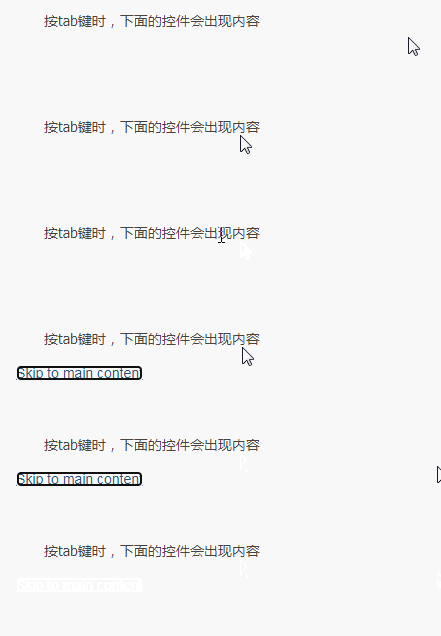
【屏幕阅读器】
.sr-only 类可以对屏幕阅读器以外的设备隐藏内容。.sr-only 和 .sr-only-focusable 联合使用的话可以在元素有焦点的时候再次显示出来(例如,使用键盘导航的用户)
Skip to main content
【图片替换】
使用 .text-hide 类或对应的 mixin 可以用来将元素的文本内容替换为一张背景图。
.text-hide {
    font: 0/0 a;
    color: transparent;
    text-shadow: none;
    background-color: transparent;
    border: 0;
}
Custom heading
更多编程相关知识,请访问:编程视频!!




