图形用户界面 (GUI)
图形用户界面 (gui) 只不过是一个桌面应用程序,可帮助我们与计算机进行交互
像文本编辑器这样的 GUI 应用程序可以创建、读取、更新和删除不同类型的文件
数独、国际象棋和纸牌等应用程序则是游戏版的GUI程序
还有 Google Chrome、Firefox 和 Microsoft Edge 之类的 GUI 应用程序是用来浏览 Internet 的
这些都是我们日常在电脑上使用的一些不同类型的 GUI 应用程序,其实我们通过 Tkinter 也是可以构建简单的类似应用程序的
立即学习“Python免费学习笔记(深入)”;
今天我们作为 GUI 的入门,将创建一个非常简单且漂亮的 GUI 应用程序
用于创建GUI的 Python 库
Python 有大量的第三方类库,对于 GUI 库,主要有以下几种:
Kivy
Python QT
wxPython
Tkinter
其中,Tkinter 是很多学习者和开发者的首选,因为它简单易用而且随 Python 安装自带
Tkinter 基础
下面的图片显示了应用程序是如何在 Tkinter 中实际执行

我们首先导入 Tkinter 模型,接着,我们创建主窗口,在这个窗口中,我们将要执行操作并显示一切视觉效果,接下来我们添加 Widgets,最后我们进入 Main Event Loop
这里有 2 个重要的关键字
Widgets
Main Event Loop
事件循环基本上是告诉代码继续显示窗口,直到我们手动关闭它,是在后台无限循环运行的
对于 Widgets 我们后面单独学习
下面一个代码例子,来深入理解下
import tkinter
window = tkinter.Tk()
# to rename the title of the window window.title("GUI")
# pack is used to show the object in the window
label = tkinter.Label(window, text = "Hello World!").pack()
window.mainloop()
我们导入 Tkinter 包并定义一个窗口,接着我们可以修改一个窗口标题,每当打开应用程序时,该标题都会显示在标题选项卡上
最后,我们还定义了一个标签,标签只不过是需要在窗口上显示的输出,在例子中是 hello world

Tkinter Widgets
那么到底什么是 Widgets 呢
Widgets 类似于 HTML 中的元素,我们可以在 Tkinter 中找到针对不同类型元素的不同类型的 Widgets
让我们看看 Tkinter 中所有这些 Widgets 的简要介绍
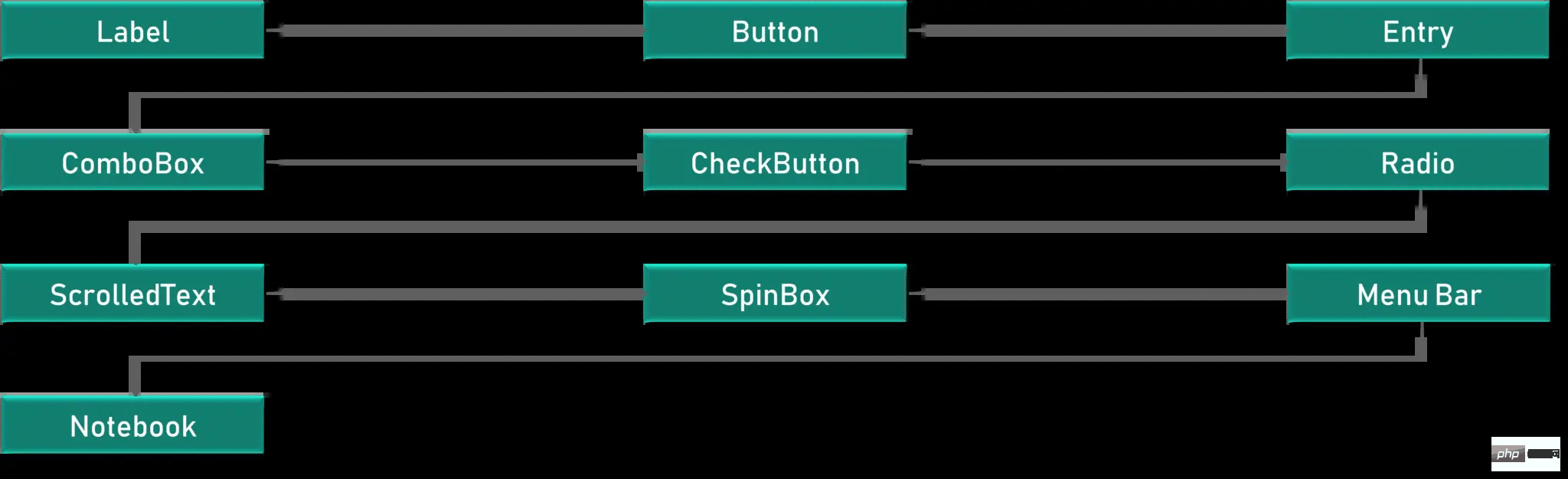
Canvas - Canvas 用于在 GUI 中绘制形状
Button – Button 用于在 Tkinter 中放置按钮
Checkbutton – Checkbutton 用于在应用程序中创建复选按钮
Entry - Entry 用于在 GUI 中创建输入字段
Frame – Frame 在 Tkinter 中用作容器
Label - Label 用于创建单行 Widgets,如文本、图像等
Menu - Menu 用于在 GUI 中创建菜单
下面让我们逐一看一下每个 Widgets 的用法
Label
标签用于创建文本和图像以及所有相关的,而且要注意的是,它只能是单行定义
l1 = Label(window, text="萝卜大杂烩!", font=("ArialBold", 50))
l1.grid(column=0, row=0)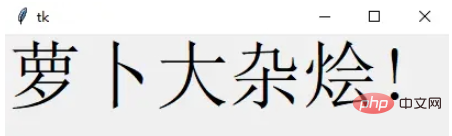
还有一个函数 geometry,它基本上用于更改窗口大小并根据我们的要求进行设置
l1 = Label(window, text="萝卜大杂烩!", font=("ArialBold", 50))
window.geometry('350x200')
在这种情况下,我们将其设置为宽 350 像素和高 200 像素
接下来是 button
Button
按钮与标签非常相似,我们创建一个变量并使用 Widgets 语法来定义按钮要表达的内容
window.geometry('350x200')
bt = Button(window, text="Enter")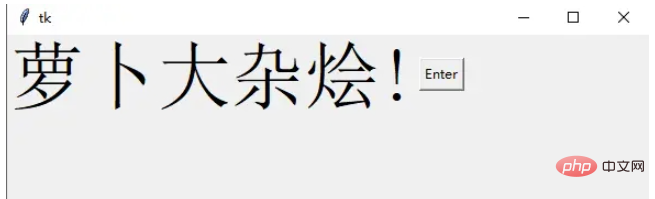
我们还可以更改按钮或任何其他 Widgets 的前景颜色,使用代码中所示的参数 FG。 同样,也可以使用 BG 属性更改背景颜色
bt = Button(window, text="Enter", bg="orange", fg="red")
bt.grid(column=1, row=0)
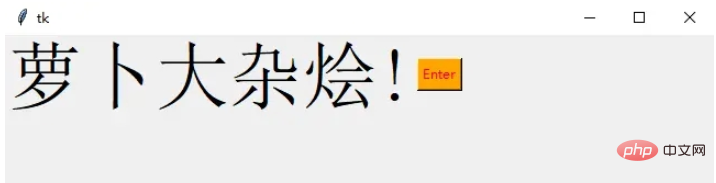
我们的前景是定义为红色的文本,背景为橙色
下面来看一下点击按钮的操作
def clicked():
    l1.configure(text="按钮被点击了!!")
bt = Button(window, text="Enter", bg="orange", fg="red", command=clicked)
这个我们称之为点击事件,我们需要编写有关单击按钮或触发单击事件时应该发生什么的功能
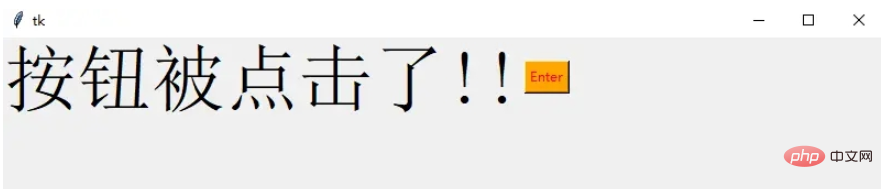
我们定义了一个名为 clicked 的函数,可以显示一条文本消息,我们在按钮定义中添加一个名为 command 的参数,来调用点击事件
Entry
它用于在 GUI 中创建输入字段以接收文本输入
txt = Entry(window, width=10)
txt.grid(column=1, row=0)
def clicked():
    res = "Welcome to " + txt.get()
    l1.configure(text=res)
bt = Button(window, text="Enter", bg="orange", fg="red", command=clicked)
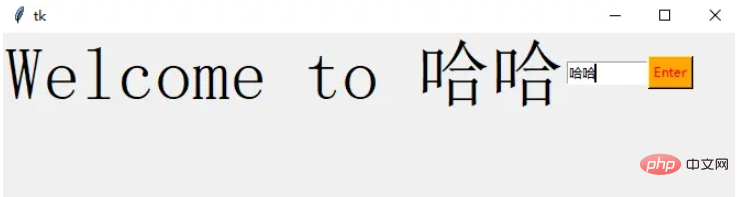
在这里,我们使用 Tkinter Entry 类创建一个文本框,grid 定义我们希望窗口小部件位于何处

同时 clicked 函数接收 Entry 的文本信息
Combobox
这是一个带有某些选项的下拉菜单
from tkinter.ttk import *
combo = Combobox(window)
combo['values']= (1, 2, 3, 4, 5, "Text")
combo.current(3)
combo.grid(column=0, row=0)

这样一个下拉菜单就完成了
Checkbutton
复选按钮是非常常用的组件
chk_state = BooleanVar()
chk_state.set (True)
chk = Checkbutton(window, text="Select", var=chk_state)
chk.grid(column=4, row=0)
我们首先创建一个 booleanvar 类型的变量,这是一个 Tkinter 变量
默认情况下,我们将设置状态保持为 true,这代表按钮已经被选中 接下来,我们将 chk_state 传递给 checkbutton 类来为我们设置检查状态

Radio Button
单选按钮也是非常常用的
rad1 = Radiobutton(window, text=Python', value=1)
rad2 = Radiobutton(window, text=Java', value=2)
rad3 = Radiobutton(window, text=Scala', value=3)
rad1.grid(column=0, row=0)
rad2.grid(column=1, row=0)
rad3.grid(column=2, row=0)
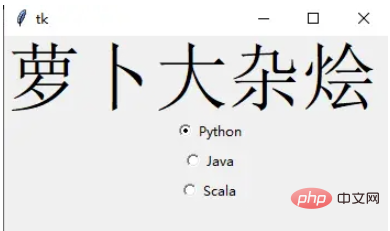
在这里,我们使用了不同的参数值,1,2和3,如果它们相同,则会导致冲突并出现错误
它们的文本数据是可以相同,在这里,我们使用了 Python、Java 和 Scala
Scrolled Text
滚动文本组件
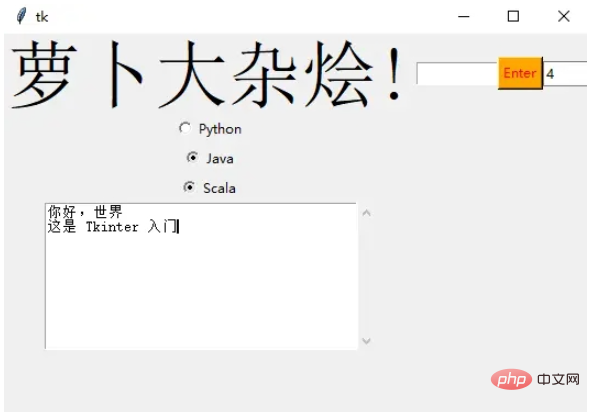
scro_txt = scrolledtext.ScrolledText(window, width=40,height=10)
scro_txt.grid(column=0, row=4)
我们指定了窗口的高和宽,否则默认会填充整个 Windiws 窗口
Message Box
消息组件可以方便的弹出提醒消息
def clicked():
    messagebox.showinfo('Message title', 'Message content')
btn = Button(window,text=‘ENTER', command=clicked)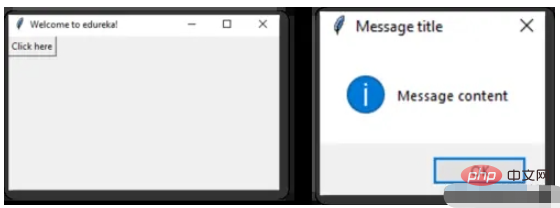
SpinBox
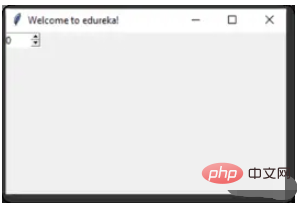
Spinbox 也是一个常见的组件,有两个选项卡,存在向上和向下滚动选项卡
pin = Spinbox(window, from_=0, to=100, width=5)
有 3 个参数——from、to 和 width
From – 告诉我们范围的开始和默认值
to – 给我们范围的上限阈值
width 基本上是将 widget 的大小设置为5个字符的空格
Geometry
Tkinter 中的所有 Widgets 都会有一些位置信息,这些度量使得我们可以组织 Widgets 及其父框架、窗口等
Tkinter 具有以下三个布局方式
pack():- 它在块中组织 Widgets,这意味着它占据了整个可用宽度,这是在窗口中显示 Widgets 的标准方法
grid():- 它以类似表格的结构组织 Widgets
place():- 它将 Widgets 放置在我们想要的特定位置
组织布局
为了在窗口中安排布局,我们将使用 Frame 类
Frame -- 在窗口中创建分区,我们可以根据需要使用 pack() 方法的侧面参数对齐框架
Button -- 在窗口中创建一个按钮,需要传递几个参数,如文本(按钮的值)、fg(文本的颜色)、bg(背景颜色)
在下面的代码中,我们使用 window、top_frame、bottom_frame 来布局
import tkinter
window = tkinter.Tk()
window.title("GUI")
# creating 2 frames TOP and BOTTOM
top_frame = tkinter.Frame(window).pack()
bottom_frame = tkinter.Frame(window).pack(side = "bottom")
# now, create some widgets in the top_frame and bottom_frame
btn1 = tkinter.Button(top_frame, text = "Button1", fg = "red").pack()# 'fg - foreground' is used to color the contents
btn2 = tkinter.Button(top_frame, text = "Button2", fg = "green").pack()# 'text' is used to write the text on the Button
btn3 = tkinter.Button(bottom_frame, text = "Button2", fg = "purple").pack(side = "left")# 'side' is used to align the widgets
btn4 = tkinter.Button(bottom_frame, text = "Button2", fg = "orange").pack(side = "left")
window.mainloop()
再来看一个登录的小栗子
import tkinter
window = tkinter.Tk()
window.title("GUI")
# creating 2 text labels and input labels
tkinter.Label(window, text = "Username").grid(row = 0) # this is placed in 0 0
# 'Entry' is used to display the input-field
tkinter.Entry(window).grid(row = 0, column = 1) # this is placed in 0 1
tkinter.Label(window, text = "Password").grid(row = 1) # this is placed in 1 0
tkinter.Entry(window).grid(row = 1, column = 1) # this is placed in 1 1
# 'Checkbutton' is used to create the check buttons
tkinter.Checkbutton(window, text = "Keep Me Logged In").grid(columnspan = 2) # 'columnspan' tells to take the width of 2 columns
# you can also use 'rowspan' in the similar manner
window.mainloop()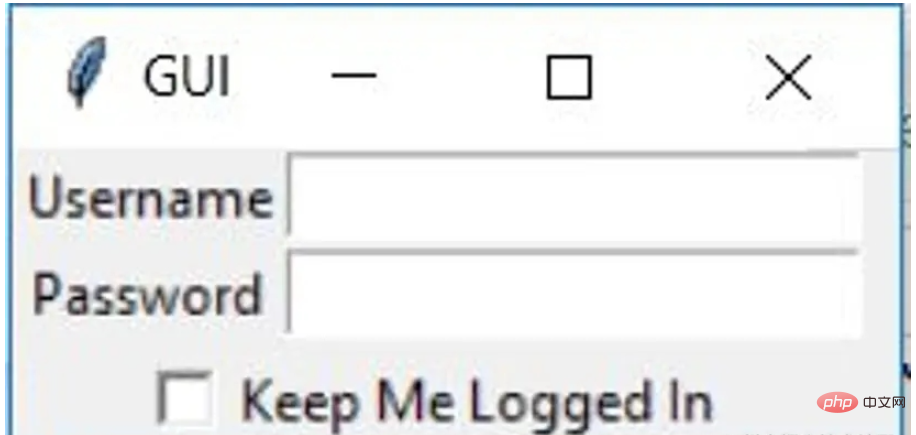
下面我们来了解 binding 函数
binding 函数
每当事件发生时调用函数就是绑定函数
在下面的示例中,当单击按钮时,它会调用一个名为 say_hi 的函数。 函数 say_hi 会创建一个带有文本 Hi 的新标签
import tkinter
window = tkinter.Tk()
window.title("GUI")
# creating a function called say_hi()
def say_hi():
    tkinter.Label(window, text = "Hi").pack()
tkinter.Button(window, text = "Click Me!", command = say_hi).pack() # 'command' is executed when you click the button
# in this above case we're calling the function 'say_hi'.
window.mainloop()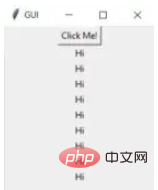
另一种绑定函数的方法是使用事件,事件类似于鼠标移动、鼠标悬停、单击和滚动等等
import tkinter
window = tkinter.Tk()
window.title("GUI")
# creating a function with an arguments 'event'
def say_hi(event): # you can rename 'event' to anything you want
    tkinter.Label(window, text = "Hi").pack()
btn = tkinter.Button(window, text = "Click Me!")
btn.bind("Button-1", say_hi) # 'bind' takes 2 parameters 1st is 'event' 2nd is 'function'
btn.pack()
window.mainloop()
单击事件有 3 种不同的类型,分别是 leftClick、middleClick 和 rightClick
下面的代码将使用对于的文本创建一个新标签
import tkinter
window = tkinter.Tk()
window.title("GUI")
#creating 3 different functions for 3 events
def left_click(event):
    tkinter.Label(window, text = "Left Click!").pack()
def middle_click(event):
    tkinter.Label(window, text = "Middle Click!").pack()
def right_click(event):
    tkinter.Label(window, text = "Right Click!").pack()
window.bind("Button-1", left_click)
window.bind("Button-2", middle_click)
window.bind("Button-3", right_click)
window.mainloop()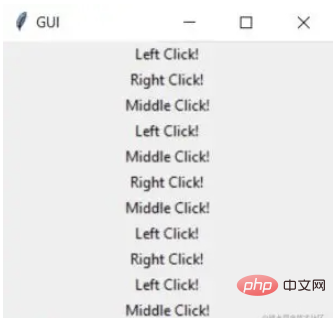
Images 和 Icons
我们可以使用 PhotoImage 方法添加图像和图标
import tkinter
window = tkinter.Tk()
window.title("GUI")
# taking image from the directory and storing the source in a variable
icon = tkinter.PhotoImage(file = "4.PNG")
# displaying the picture using a 'Label' by passing the 'picture' variriable to 'image' parameter
label = tkinter.Label(window, image = icon)
label.pack()
window.mainloop()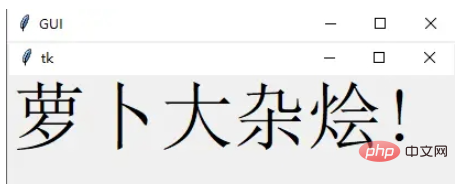
好了,进步的 Tkinter 知识我们都梳理完毕了,下面就完成一个简单的实战项目吧
计算器 APP
首先初始化页面
window = Tk()
window.geometry("350x380")
window.resizable(0, 0)  # this prevents from resizing the window
window.title("小小计算器")
接下来定义输入数字框
input_text = StringVar()
input_frame = Frame(window, width=312, height=50, bd=0, highlightbackground="black", highlightcolor="black",
                    highlightthickness=1)
input_frame.pack(side=TOP)
input_field = Entry(input_frame, font=('arial', 18, 'bold'), textvariable=input_text, width=50, bg="#eee", bd=0,
                    justify=RIGHT)
input_field.grid(row=0, column=0)
input_field.pack(ipady=10)
然后定义按钮方法,我们以清除按钮和除法按钮为例
clear = Button(btns_frame, text="C", fg="black", width=32, height=3, bd=0, bg="#eee", cursor="hand2",
               command=lambda: btn_clear()).grid(row=0, column=0, columnspan=3, padx=1, pady=1)
divide = Button(btns_frame, text="/", fg="black", width=10, height=3, bd=0, bg="#eee", cursor="hand2",
                command=lambda: btn_click("/")).grid(row=0, column=3, padx=1, pady=1)
最后就是计算equal逻辑
equals = Button(btns_frame, text="=", fg="black", width=10, height=3, bd=0, bg="#eee", cursor="hand2",
               command=lambda: btn_equal()).grid(row=4, column=3, padx=1, pady=1)
def btn_equal():
   global expression
   result = str(eval(expression))
   input_text.set(result)
expression = ""