



作为编码者,美工基础是偏弱的。我们可以参考一些成熟的网页ps教程,提高自身的设计能力。套用一句话,“熟读唐诗三百首,不会作诗也会吟”。
本系列的教程来源于网上的PS教程,都是国外的,全英文的。本人尝试翻译这些优秀的教程。因为翻译能力有限,翻译的细节上还有待推敲,希望广大网友不吝赐教。
约定:
1、本文的软件是Photoshop CS5版本
2、原教程的截图是英文的,本人在重新制作的基础上,重新截了中文版的图
3、原文中有些操作没有给出参数。本人在反复测试的情况下测定了一些参数,以红色的文字显示。有些错误的参数,直接以红色文字显示正确的参数
例如:(90,22,231,77),表示矩形的左上角的坐标是(90,22),宽231,高77
例如:(90,22),表示矩形的左上角的坐标是(90,22),矩形的其他两个参数教程里已经指定
4、在教程的最后会附上本人的心得。有些是对教程中的一些步骤的优化等。

Welcome by this new Photoshop tutorial. During this tutorial will learn to create the Template of a website especially dedicated to the publication of Graphical works (portfolios for Web designers, graphic designers or photographs). For its design, I created a vintage design. I invite you to follow this tutorial because it is really easy to do, then go on!
欢迎来到这个新的 Photoshop 教程。在本教程中将学习如何创建网站的模版,尤其是专用于图形工作 (包括 Web 设计师、 平面设计师或照片) 的出版。其设计,我创建了一种复古的设计。我请你跟随本教程,因为它是真的很容易做,让我们开始吧 !
Before to start, please, watch the preview of the final result of this Photoshop tutorial: Preview
在开始之前,请预览本教程的最终作品
STEP 1 Create a new document
步骤1:新建文档
You are nowGo now to the menu File>New. Enter the name, the width and height used for your future picture, then click on the OK key.
你已经准备好了打开你的Photoshop软件(请注意的是,我用的是CS6,但是你可以用以前的版本来学习本教程)。点击:文件 > 新建。给你的图片输入名字、宽度、高度等,然后点击确定
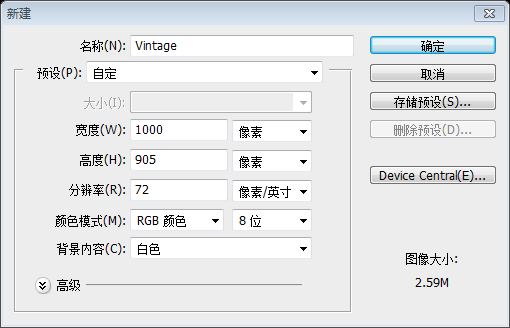
You picture gets automatically open. Press the Ctrl/Tab + R keys to display the guides. Go now to the menu File>Save as, to save your file.
你的图片会自动打开。按Ctrl/Tab + R键显示网格。点击:文件 > 另存为,保存你的文件
STEP 2 Create the background and the top
步骤2:创建背景和顶部区域
Select the Paint Bucket tool (G) to change the foreground colour to #e3dfc6, and use the Paint Bucket tool (G) to fill the background.
Use the Rectangular Marquee tool (U) to create a grey bar #706d5c with a size of 1000x52px.
选择油漆桶工具,更改前景色为: #e3dfc6,并用油漆桶工具填充背景。用矩形工具创建一个灰色的横幅(0,0),颜色: #706d5c,尺寸:1000*52px
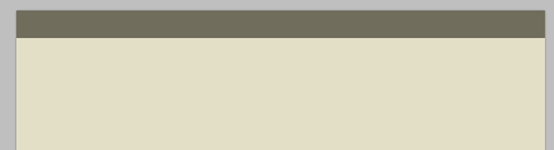
Keep under this bar a free space of 117px, then create a second bar with a size of 1000x5px.
在这个横幅下方保持117px的空间,然后创建第二个横幅(169,0),尺寸:1000*5px
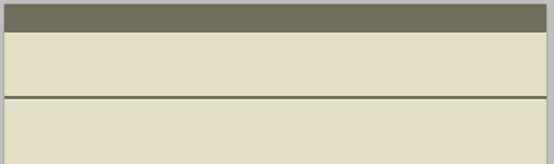
Notice: Do not hesitate to use the Photoshop guides to make your work easier. It is really easy to create a guide: click on the rule, then, move you cursor on your document and stop to keep the click button of your mouse, at the right place you need to create the guide.
注意:毫不犹豫地使用 Photoshop 参考线来使您的工作更容易。很容易创建参考线: 点击标尺,然后,按住鼠标移动您的文档中合适的位置释放你的鼠标,创建参考线。
STEP 3 Create the menu
步骤3:创建菜单
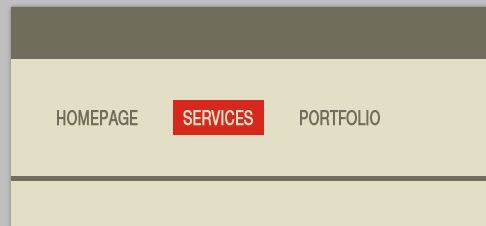
To create the menu, create first a new group you name « the links”. Use now the Text tool (T) to create the links of the menu (see picture below). Font used Helvetica Neue LT std, with the following colour #706d5c, and a size of 20px.
为了创建菜单,创建一个新组the links。现在用文字工具创建菜单的文字链接(参照下面的图片)。字体用Helvetica Neue LT std,颜色: #706d5c,字号:20px。视情况而定,我水平缩放70%。
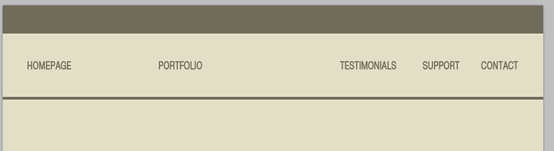
To simulate the hover/active of the links, I created a red rectangle #d7281e just under of one of the links (but you can apply the colour of your choice).
为了模拟悬停/活跃的链接,我要在一个链接下面创建一个红色(#d7281e)的矩形(你也可以添加你自己的颜色)
Use the Rectangular marquee tool (U) to create the rectangle.
用矩形工具创建一个矩形(162,93,91,35)
Change the colour of the k=link located under the red rectangle, using the colour of the background # e3dfc6.
更改红色矩形下的活动链接颜色,选择背景色: #e3dfc6
STEP 4 Add the logo
步骤4:添加LOGO
For the logo, I used a resource available on the website of our partnership Shutterstock. Go to this page to download the vector file. Open the file using Illustrator.
作为标志,我用我们的合作伙伴Shutterstock网站上的资源。到这个页面下载矢量文件。使用Illustrator中打开的文件。
To create a copy of the red logo, select it and press the Ctrl/Tab + C keys. Go back to your document under Photoshop, then on Ctrl/Tab + V to insert the logo. Depending of the main colour of the Template, you can choice another logo regarding this colour.
为了创建一个红色LOGO的副本,选择它按Ctrl + C键,回到你的PS文档,然后按Ctrl + V插入这个LOGO。根据模板中的主色,你可以给这个LOGO选择这种颜色。

Use the Elipse tool (U) to create a round with same size of your logo and use same colour than the one used for the background #e3dfc6.
使用椭圆工具(U)创建一个和您的LOGO同样大小的圆(416,30,168,168),并使用相同的颜色作为背景,颜色: #e3dfc6。

Put the layer of the round under the red logo, then press on Ctrl/Tab + T to activate the free transform. In the bar of options (horizontal bar on the top of your screen) change the 100% value by the 110% value. Press on ENTER.
把这个圆的图层放在红色LOGO的下方,然后按Ctrl + T自由变换。在上方的选项栏里(在屏幕的上方的水平栏中)把100%改成110%,把宽和高改成185。按ENTER确定

Go to the menu Layer>Layer Style>Stroke, then increase the stroke size to 5px and update the colour with this value #706d5c.
点击菜单:图层 > 图层样式 > 描边,然后调整描边的尺寸为5px,更改颜色为: #706d5c
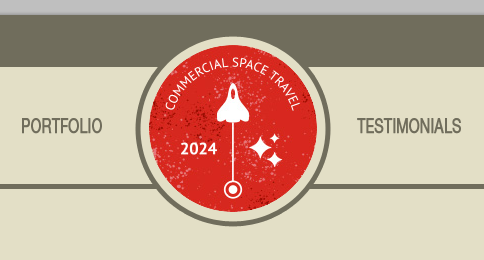
To finish the logo, create a new layer. Using now the Rectangular Marquee tool (M), create a rectangle under the logo with a height of 117px. Fill the selection using the Paint bucket tool (G) and the background colour #e3dfc6.
为了完成LOGO,创建新的图层。现在用矩形选框工具,在LOGO的下方创建一个矩形(400,52,200,117),高度为117px。用油漆桶工具给选区填充背景色: #e3dfc6
也可以用矩形工具画一个矩形(400,52,200,117),颜色: #e3dfc6

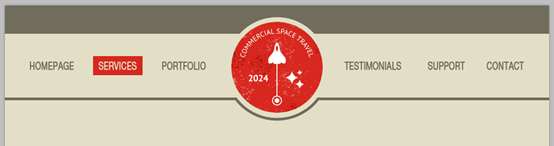
See below the final result of header and logo.
下面是最终的头部区域和LOGO
STEP 5 Contents of the left part
步骤5:左边部分的内容
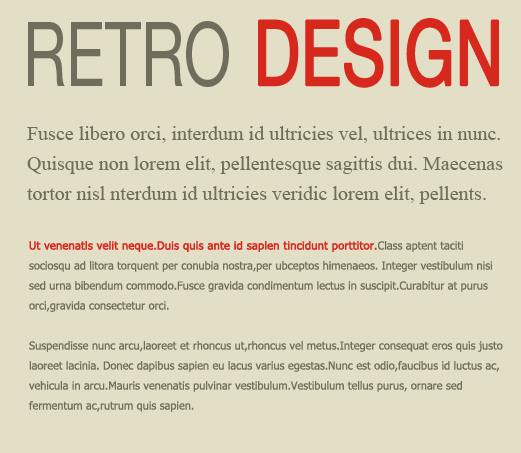
It’s easier to create the contents, use the Text tool (T) to create the title. I used the two following colours: the grey #706d5c and the red #d7281e and the same font than the one used for the menu but with a size of 90px.
内容部分是非常容易创建的,用文字工具创建标题。我用后面的两种颜色,灰色: #706d5c,红色: #d7281e,字体和菜单栏上的字体一样,但是字号改为90px

Use same method to create the paragraphs, with the fonts Times New Roman et Tahoma and a size of 12px.
用同样的方法创建段落,字体用Times New Roman ,字号:20px;另一段字体用Tahoma,字号11px
STEP 6 Contents of the right part
步骤6:右边部分的内容
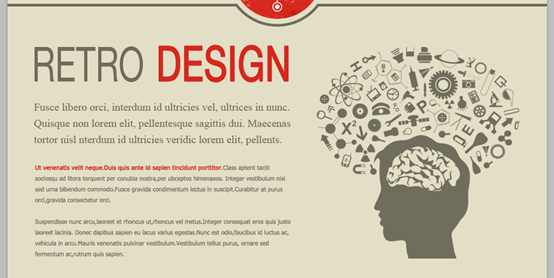
I used one more time a resource downloaded from our website partnership Shutterstock. Download the vector file, and then open it under Illustrator. Copy and paste it into your Photoshop document. Change the height size regarding the number of text lines.
我多次从我们的网站合作伙伴关系的Shutterstock上下载资源。下载矢量文件,然后在Illustrator中打开它。复制并粘贴到你的Photoshop文件。调整和文本行数的高度相同的尺寸。

The result below must be what you get under Photoshop.
你所得到的Photoshop中的结果必定和下面一样的吧
STEP 7 The pider
步骤7:分割器
I created a sharing bar under the content; it helps to come back to the top of the page (if you want to create a landing page, check further in this tutorial).
我在内容下创建了一个共享栏,它有助于回来页面顶部(如果你想创建一个登陆页面,请查看本教程中后半部分)。
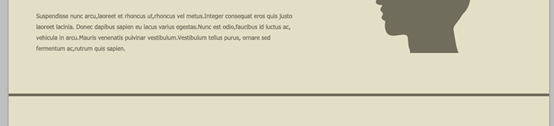
Duplicate the bar (the one with the size of 1000x5px we previously created), then place it under the contents.
复制横栏(我们之前创建的1000px*5px的矩形),然后把它摆放到内容的下方(0,716)
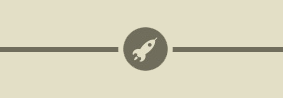
Go back to your first vector document under Illustrator, then select and copy the small round including the rocket. Copy the small logo into your Photoshop document. Put the round in the center of your picture (see the picture below).
回到你第一个Illustrator中的矢量文档,然后选择并复制包括火箭的小圆。复制小的LOGO到你的PS文档。摆放到你的图片中的圆的中心(参看下图)
Remember the method to place an element in the middle of your picture. Press on Cltr/Tab + A to create an active selection around aall your document. Select now the Move tool (V) and click on icon “Align the centres on the horizontal direction” (located in the options bar, on the top of your screen).
记住如何把一个元素放置在您的图片中的方法。按CLTR+ A全选您的文件。现在选择移动工具(V),点击图标“的中心对齐在水平方向”(位于屏幕顶部的选项栏中)。
Add two layer styles on your logo: a colour overlay and a stroke of 5px (use for both style, the colour #e3dfc6).
给你的LOGO添加两个图层样式:一个颜色叠加和5px的描边(描边样式的颜色: #e3dfc6),
See the result of the pider rocket.
查看分割火箭的结果
STEP 8 Create the footer
步骤8:创建页脚
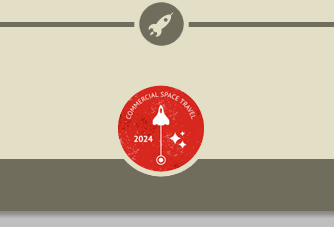
Regarding the footer, duplicate the first grey bar created in the first step. Use the Move tool (V) to move the copy at the bottom of your document.
关于页脚,重复第一步骤中创建的第一个灰色横栏。使用移动工具(V)将它移动在文档底部的(0,853)。
Duplicate the red logo and place the copy at the bottom of your document.
复制红色的LOGO并摆放到你的文档的底部
Add a stroke of 5px using the layer styles (colour #e3dfc6).
添加一个5px的描边的图层样式(颜色: #e3dfc6)
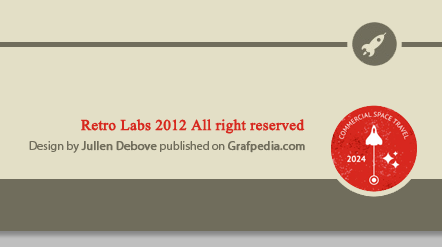
Use the Text tool (T) to create the Copyright of your website, on the left side of your logo. (I used the grey #706d5c and the red #d7281e as well as the fonts Times and Myriad).
用文字工具在你的LOGO的左边创建你的网页的版权信息。(我用的颜色,灰色: #706d5c,红色: #d7281e,字体最好选择Times和Myriad)
红色的字体:Times New Roman;字号:15px,加粗;颜色: #d7281e
灰色的字体:Myriad Pro;字号:12px;颜色: #706d5c
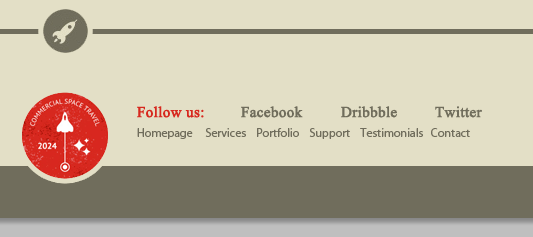
Same thing regarding the links to the social networks and the reminde of the top menu. Reserve place for free spaces between each social network links, to insert the regarding icons.
和有关的社会网络和reminde的顶部的菜单做同样的事情。准备空间为社会媒体链接的,插入有关图标。
两行文字和左边的两行文字字体相同,颜色:#d7281e和 #706d5c
Go to these pages to download the Twitter, Facebook, and Dribbble icons.
到这些页面下载Twitter, Facebook, 和 Dribbble 图标。
Reduce the icons sizes regarding the texts sizes.
调整图标的尺寸和文字的尺寸一样
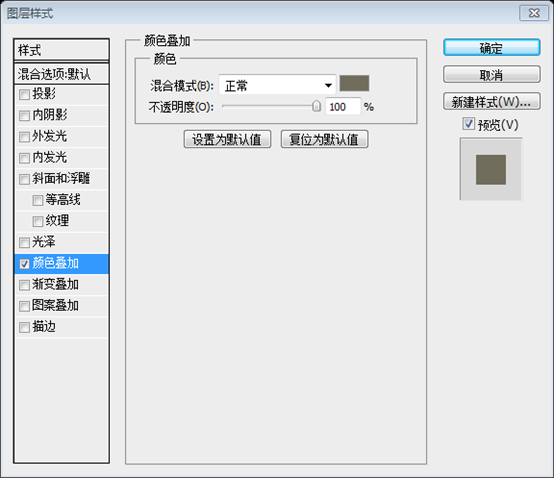
On each icon, add a colour overlay #706d5c (menu layer> layer style> colour overlay).
给每个图标,添加颜色叠加样式,颜色: #706d5c(点击: 图层 > 图层样式 > 颜色叠加)
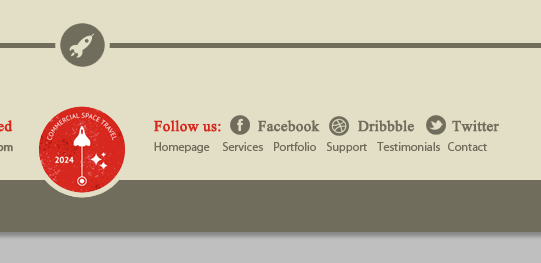
We are already finished with The Template! As I told you at beginning of this tutorial, it was really easy.
Here are some ideas to create the other pages.
我们已经完成了模版!就像我之前告诉你的,它是非常容易的
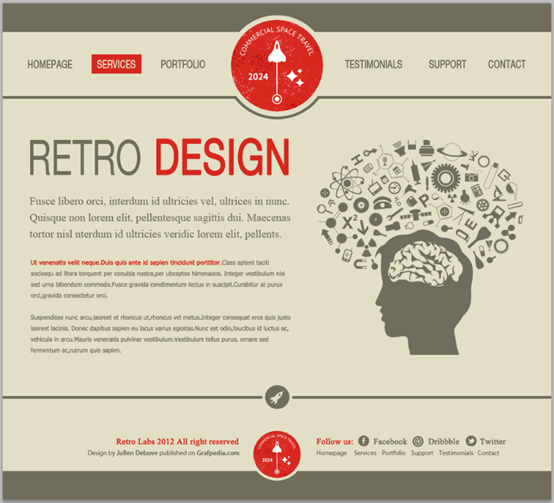
这儿有一些创建另外一些页面的设计,可以参考一下
或
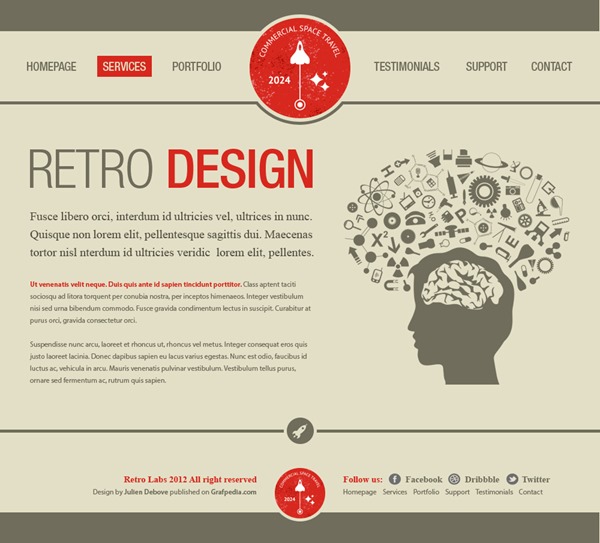
或
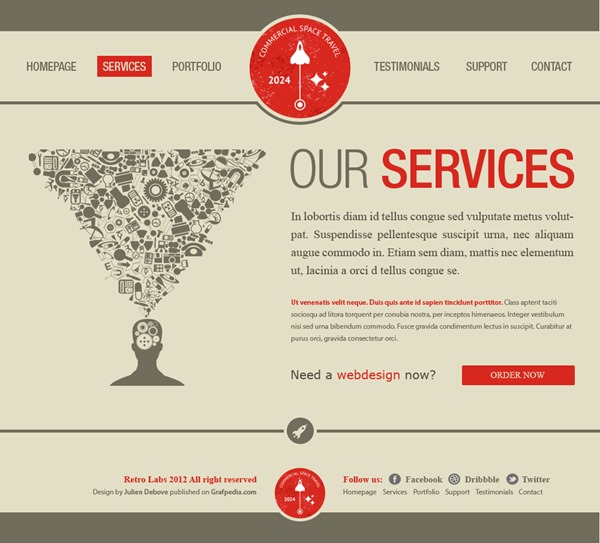
或
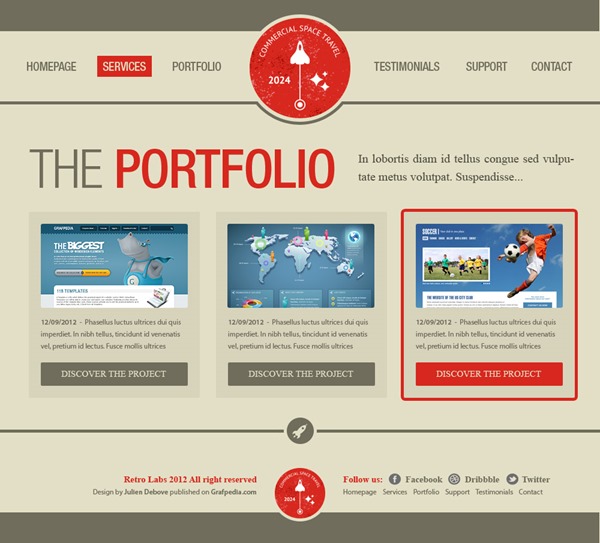
后记:这篇教程简洁明了,比较简单,整体页面风格清新朴素。尤其是利用描边的颜色(和背景色颜色一致)来实现图片和其他元素之间的分割的技术让人眼前一亮。
更多PS网页设计教程XXV——使用Photoshop设计的老式组合布局相关文章请关注PHP中文网!




